In today’s world of advanced graphic design software and powerful editing tools, it’s easy to overlook the humble MS Paint application that used to come standard with every Windows computer. However, for those of us who grew up with it, this basic tool holds a special place in our hearts. And for me, it’s still a go-to tool for creating pixel art, especially for retro-style video games. In this blog post, I’ll take you through my process of using MS Paint to create a pixel art Kraken for a retro-style JRPG that my nephew and his friends are creating. This isn’t just a one-time project, either – I’ve been using this technique since my college days at LSU, when my older brother and I were working on a video game project that never quite made it to completion. However, the skills I picked up along the way have stayed with me, and I’m excited to share them with you.
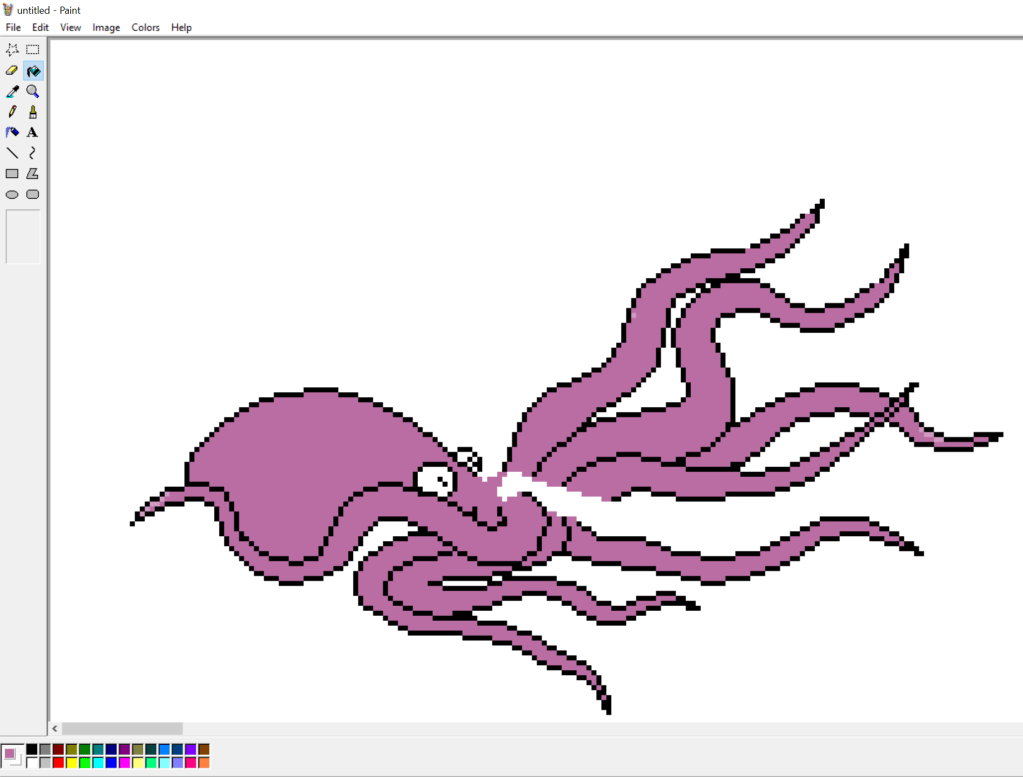
To start, I generally begin with a dark outline using the line drawing tool. I use it to create curves–I never bother with the curved line tool.
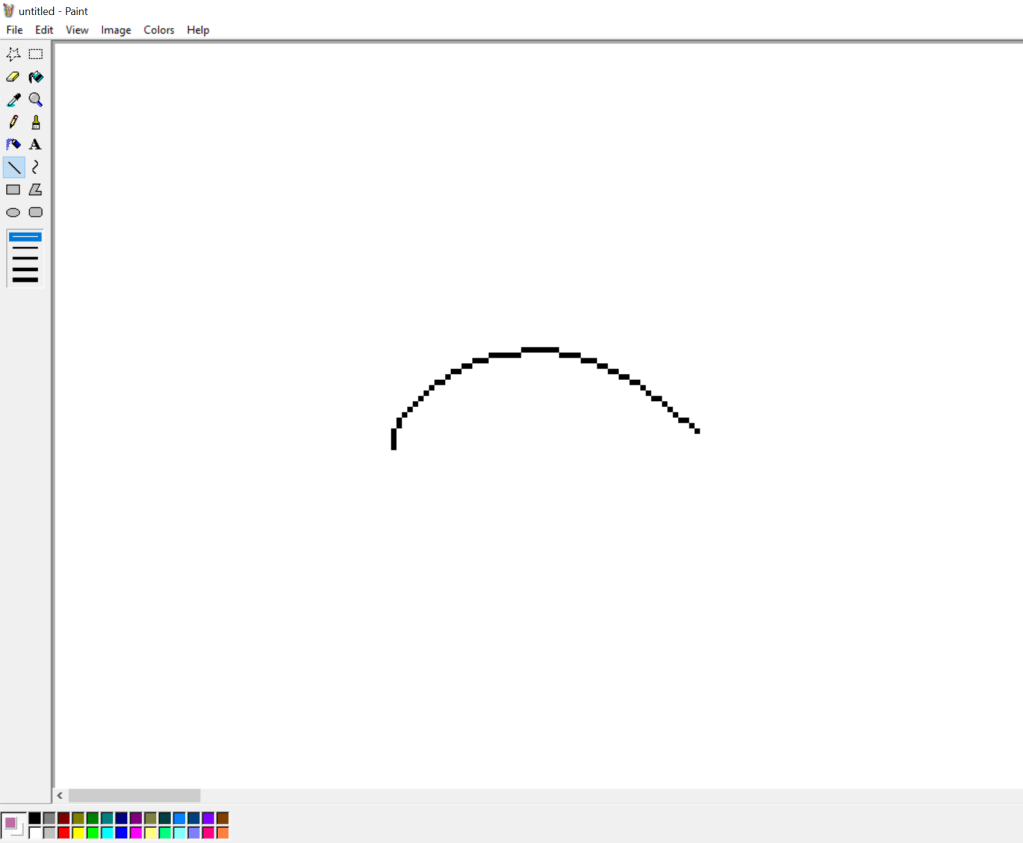
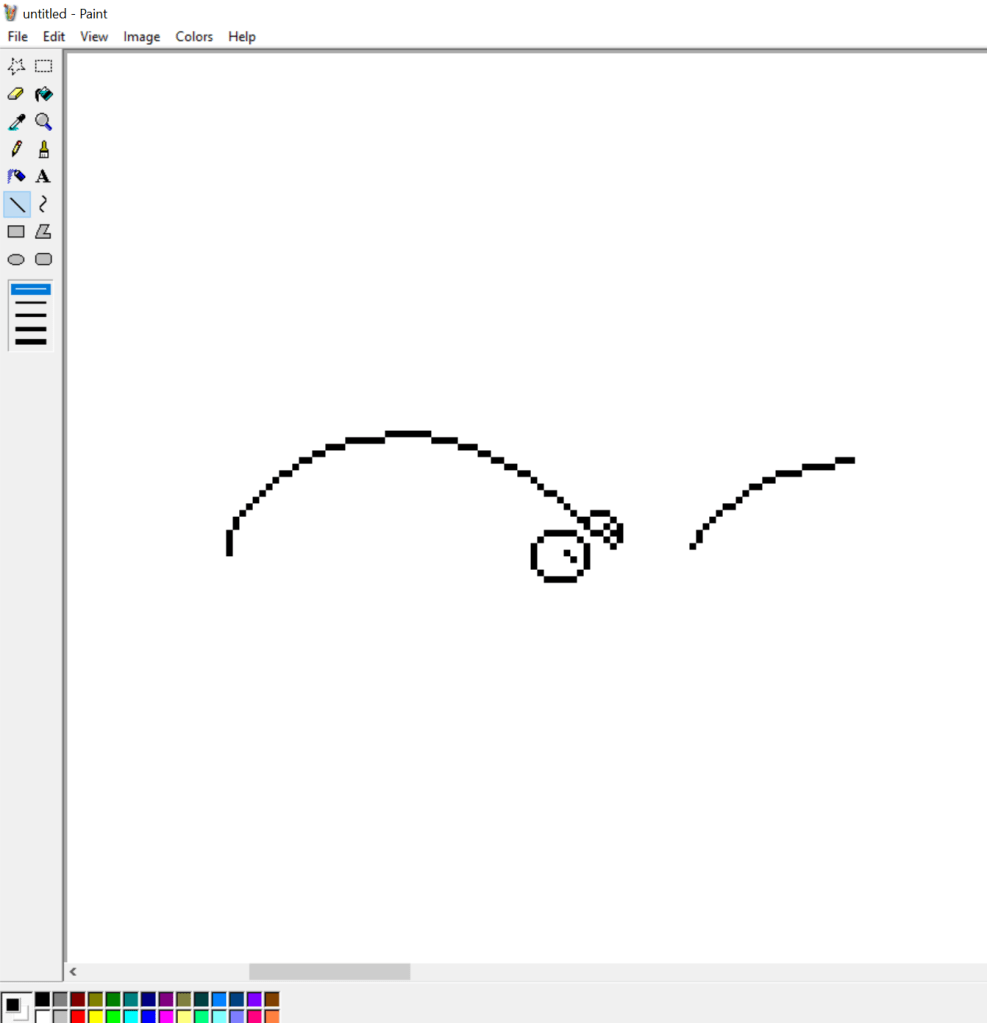
Depending on what I deem will be the most focal part of the subject is what I’ll tend to focus most of my initial time on. Most of the time, this means the face or head. However, for this type of creature, the mass of tentacles is the most focal. So I slowly use the line tool to work those out. I use a mouse (which is kind of funny because I’m left-handed and this is the only art I do right-handed.)
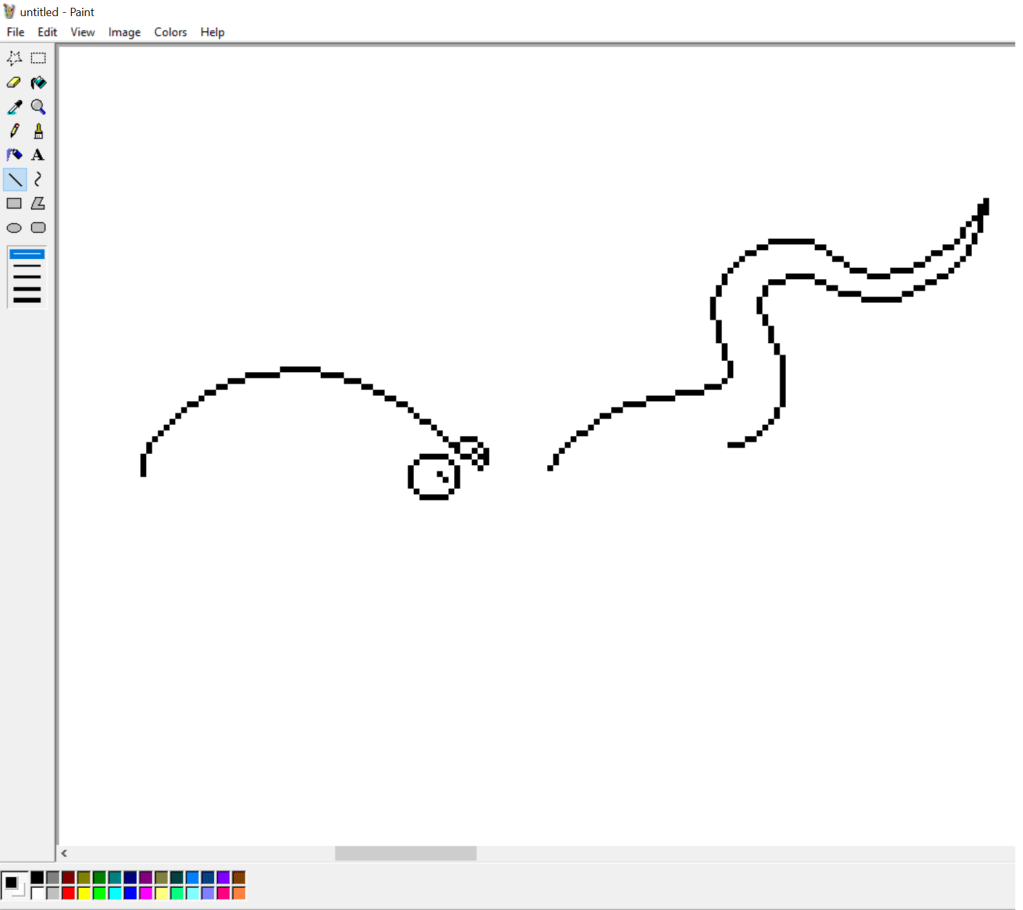
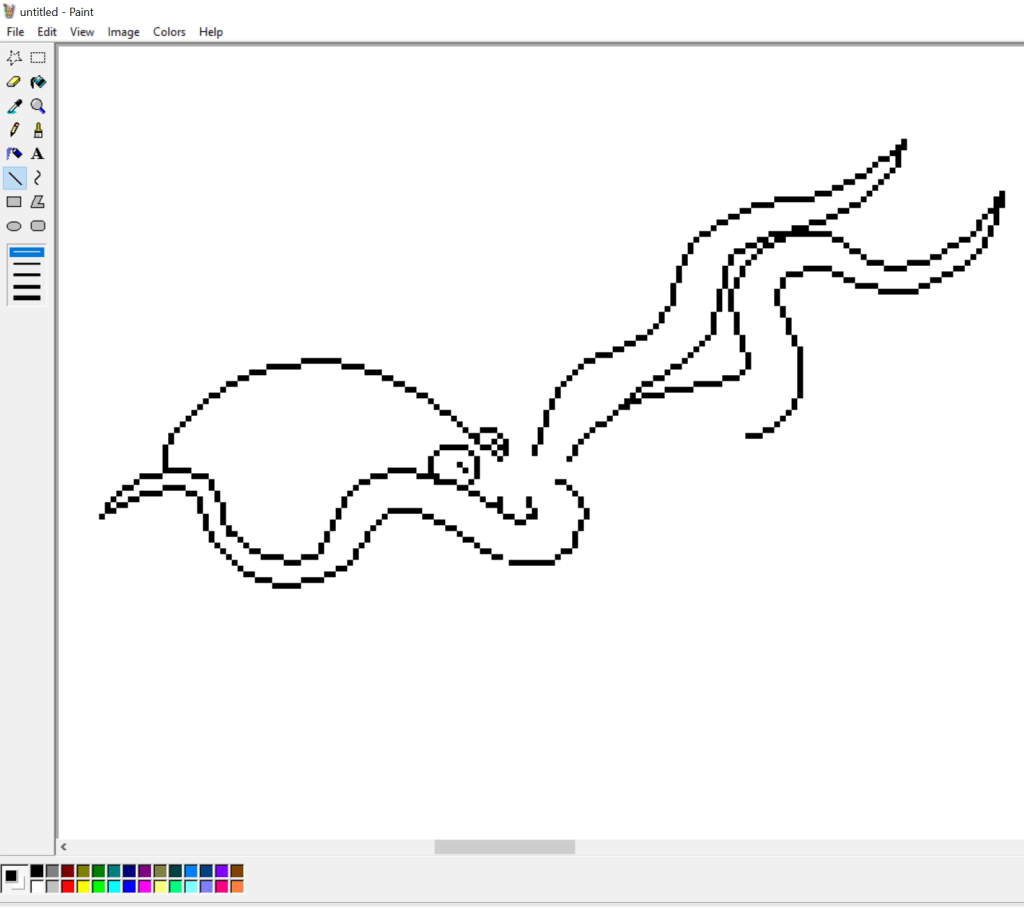
I knew I wanted to leave space for splashing water with this creature. So I didn’t bother trying to connect the head with the tentacles in an effective way.

Then, using the custom color tool (which you can simply double-click on any color you want to replace), I filled in the outline in a single color.
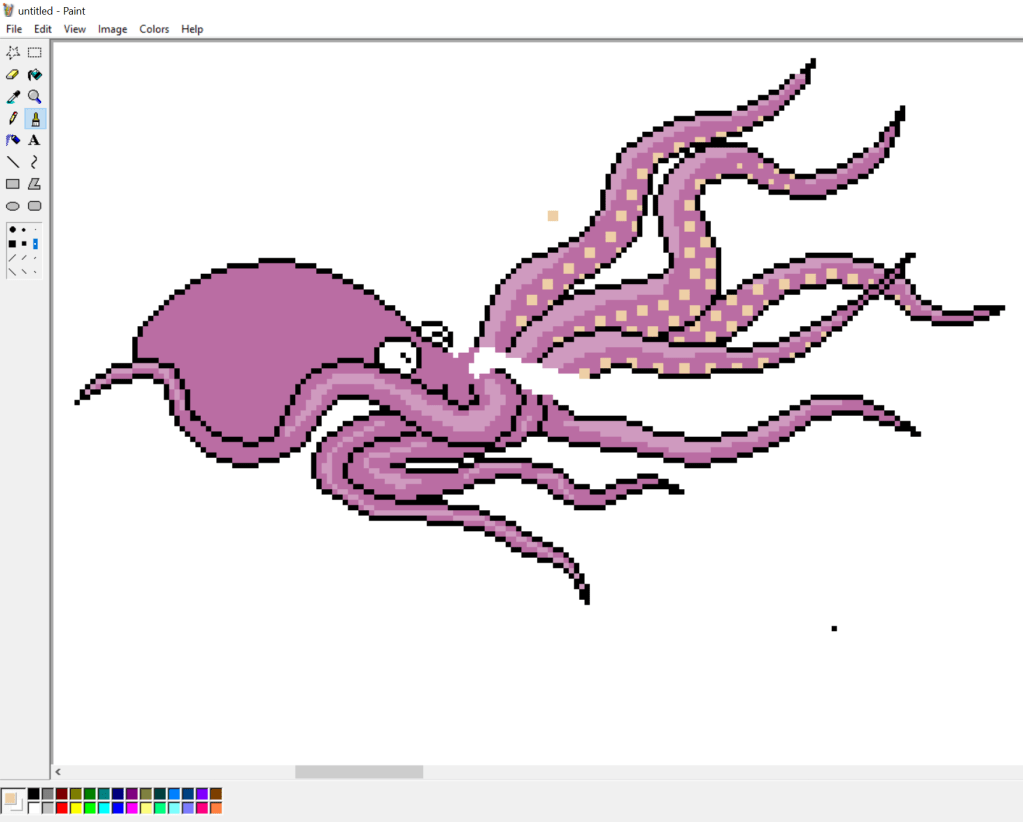
For this particular style (which I was trying to roughly match with other artists’ on this project), there are limited shadow or highlight colors. I decided to go with a highlight color. I simply lightened the existing color on my palette.

To mimic the idea of suckers on the tentacles, I used the free paint tool and used the 2×2 pixel brush and followed the darker contours of the upper tentacles. I felt that the lower tentacles didn’t need them and that it gave the creature a more mouthy-grabby aura.
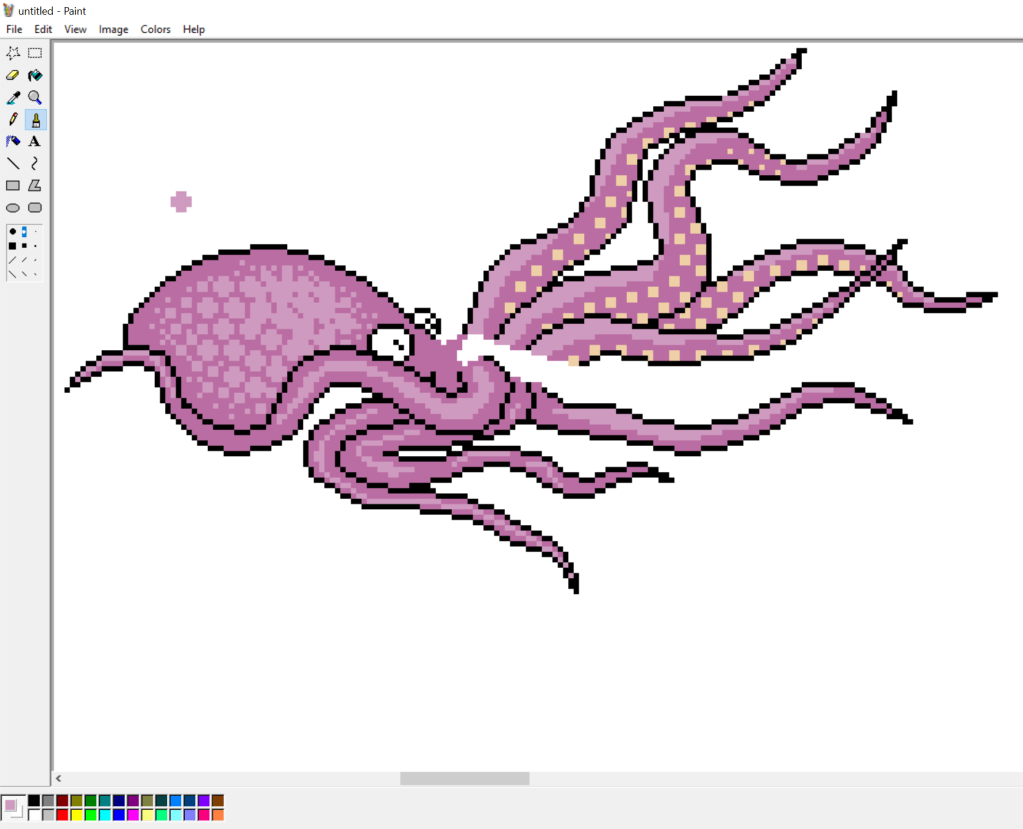
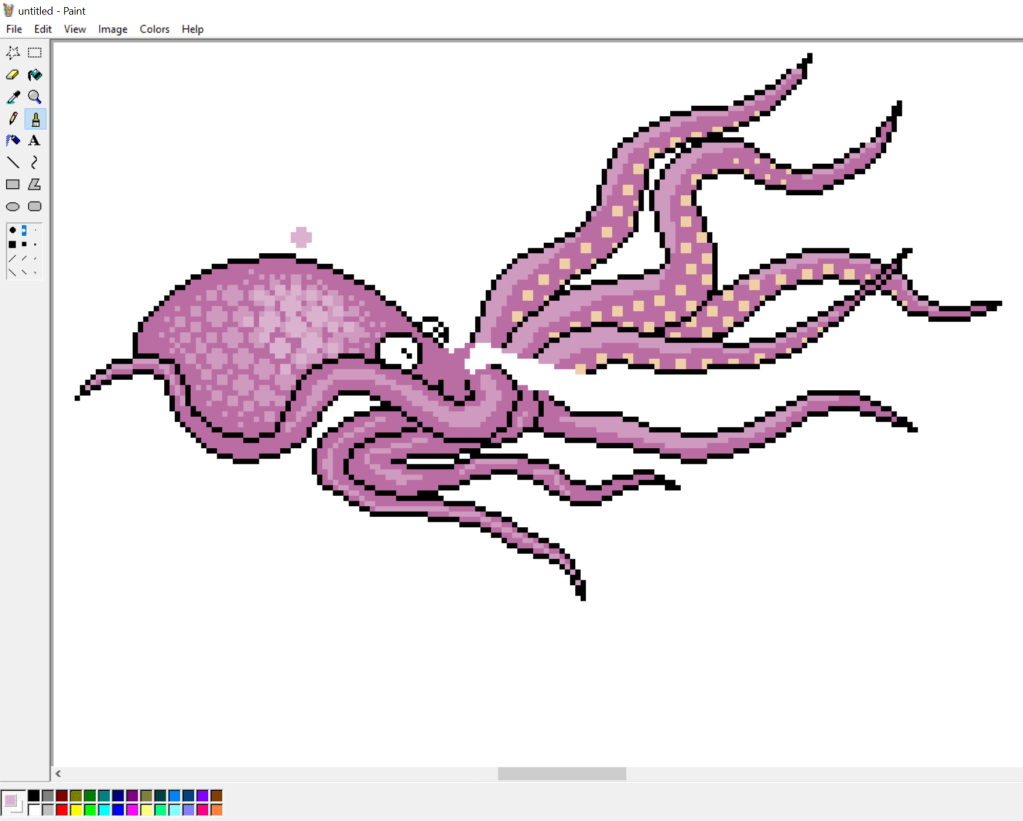
I went back to the head after this and used the free paint tool with various brush patterns to “stamp” out a pattern that evoked real octopi. I did it in my highlight color, then took it a step brighter and did a little more to give a more rounded and larger feel for the head.
After I was satisfied with the head, away from the base creature, I made some splashing water in three shades of blue and I think I added some bluish off-white. I pasted that in a few times (flipping and skewing the image as necessary). Then I went in with the free paint tool and added more splashes. Then I used the line tool to add more placid water around the head and tentacles I wanted to show as just above the surface water. Oh, and at this point, I also colored the eyes differently at this point. Sometimes I get the eyes “close-enough” before going back over them at the end to give the creature a little more life or character.
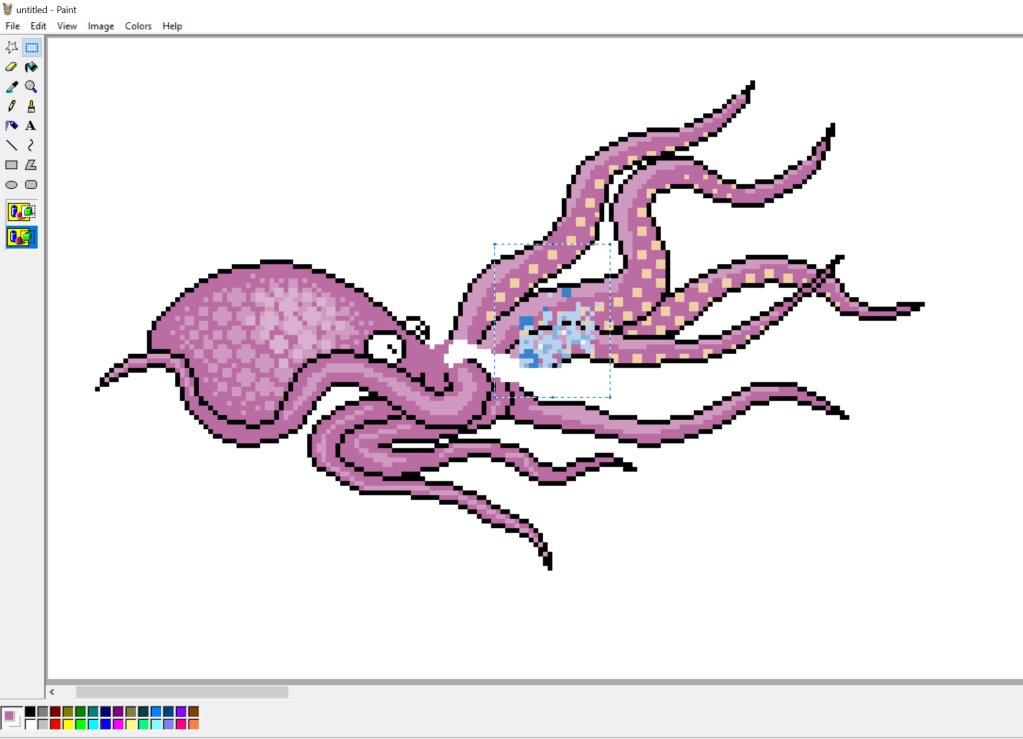
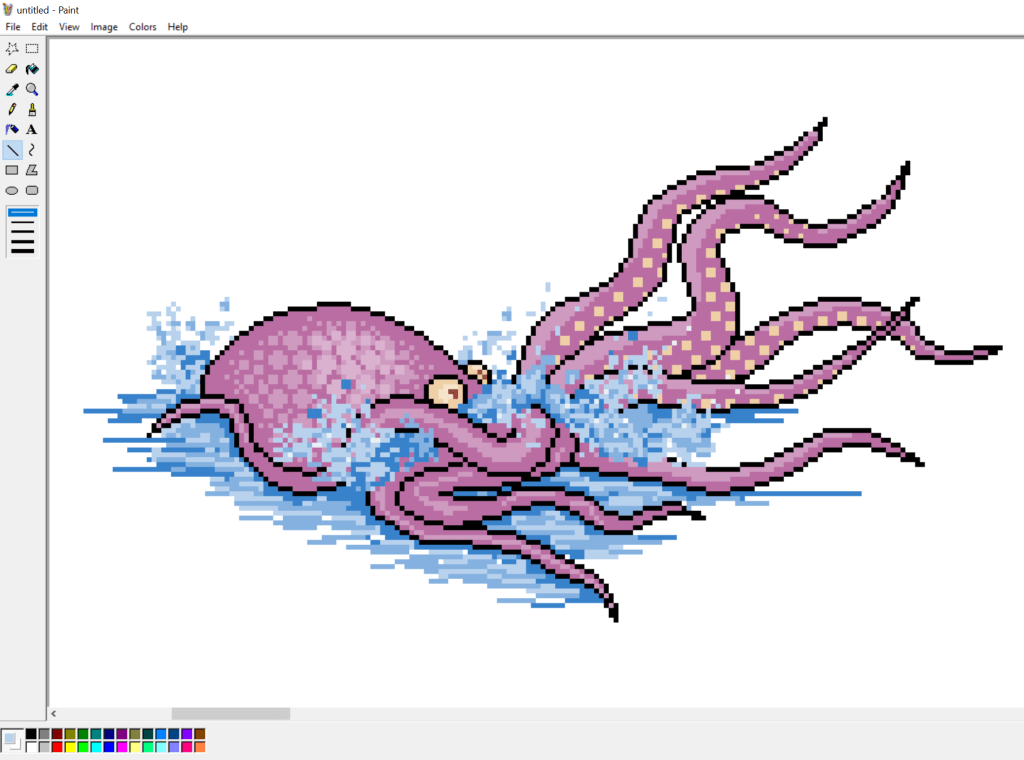
Finally, while I can take or leave it, the style of the artists I’m trying to mimic has thicker lines–giving a bit of a shadowy effect on the right side. So I just took the line tool and darkened up the right edges. Again, this isn’t typical of my style, but it’s not a bad aspect.
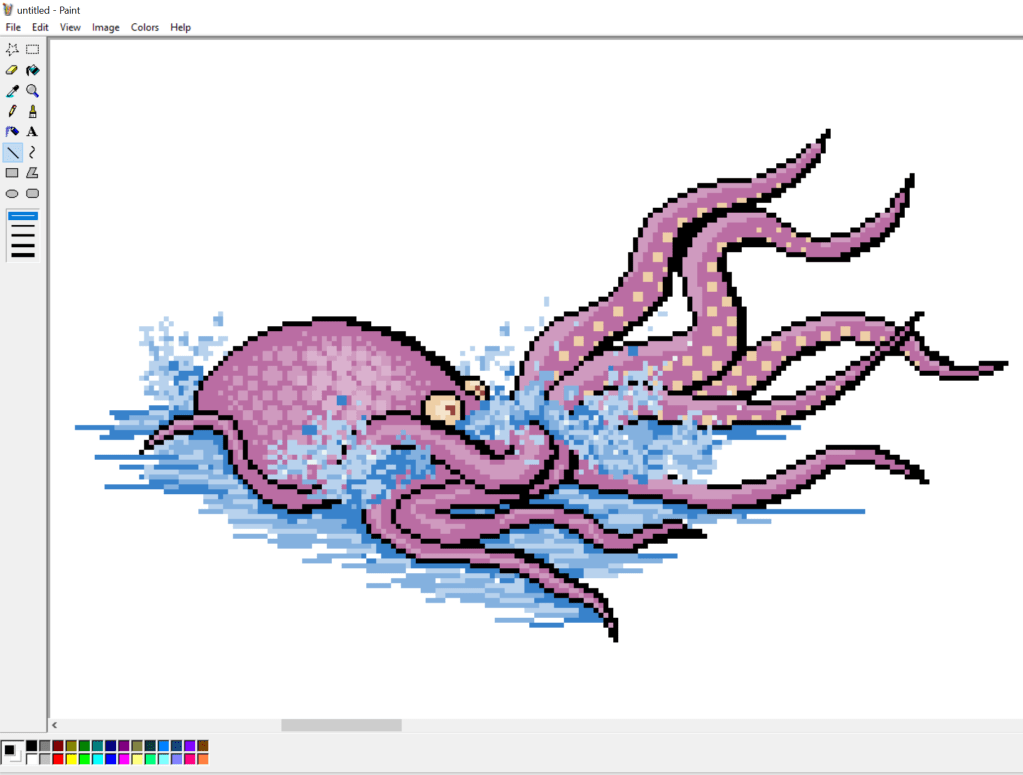
So yeah, that’s how I do pixel art using the somewhat archaic MS Paint!


 J.E.B. Mungall